


Samacsys: Difference between revisions
No edit summary |
|||
| (66 intermediate revisions by 2 users not shown) | |||
| Line 1: | Line 1: | ||
<big><b>SamacSys is a search engine for electronic components including CAD data and data sheets.</b></big> | |||
<span class="plainlinks">[[image: | <table> | ||
<tr> | |||
<td><span class="plainlinks">[[image:samacsyswikigrafik.png|Samacsys|link=http://www.samacsys.com/component-search-engine]]</span></td> | |||
</tr> | |||
<tr> | |||
<td><b>Video 2 min</b><br>[[image:loadpartsfromsamacsys.jpg|link=//server.ibfriedrich.com/video/e/samacsys/SamacsyToTarget_I.mp4|left|Video 2:34 min]]</td> | |||
</tr> | |||
</table> | |||
<br> | |||
<big><b> Drag and drop your desired part to your TARGET 3001! design. It is that easy.</b></big><br><br> | |||
Once a component is downloaded, its CAD data instantly are taken to the TARGET 3001! component data base so you have it for further projects too.<br><br><br> | |||
= Search a part in TARGET and redirect the request to SamacSys = | |||
<br><br>If you are looking for a component in the TARGET component browser, simply press the adjacent button "SamacSys" in order to redirect this request to SamacSys as well:<br><br> | |||
[[Image: Samacsy_e1.jpg|Redirect a component search to SamacSys|none]]Image: Redirect a component search to SamacSys (arrow). | |||
<br><br><br> | <br><br><br> | ||
The SamacSys website immediately searches for this component and lists the corresponding results. Select a component and click on the button in the column "ECAD Model", see arrow. If there is a symbol in the column 3D, a 3D model will be loaded automatically.<br><br> | |||
[[Image: samacsy_d2.jpg|SamacSys results listed|none]]Image: SamacSys results listed. | |||
<br><br><br> | |||
You must save the download. Use your default Windows download directory as storage location. Tell TARGET the path to it.<br><br> | |||
[[Image: samacsy_d3.jpg|Save the download|none]]Image: Save the download. | |||
<br><br><br> | |||
TARGET monitors the mentioned download directory. The path to it must be set in TARGET. This is an example setting:<br><br> | |||
[[Image: samacsy_e4.jpg|My Download directory|none]]Image: My personal download directory. Sure you will be using your user name. If a matching file arrives there by download, TARGET picks the information and deletes the file.<br><br><br> | |||
If the TARGET part browser is still open, a tab named "CXF SamacSys" is created. At the same time, a list of SamacSys downloads will be created in the lower left corner of the browser: | |||
[[Image: Samacsy_e5.jpg|SamacSys TAB and list|none]]Image: SamacSys TAB and list in TARGET 3001! | |||
<br><br><br> | |||
= Search for a component at SamacSys while the TARGET schematic is open. = | |||
In this situation you have the component symbol instantly at the cursor after downloading it from the SamacSys site. You will be able to place it straight away to the schematic. At the same time it is stored in the TARGET component database.<br><br> | |||
<!-- | |||
= Download and install LibraryLoader = | = Download and install LibraryLoader = | ||
<span class="plainlinks">[[image:samacsys_libraryloader1.jpg|Samacsys website|link=http://www.samacsys.com]]</span><br>Image: Find "LibraryLoader" on the Samacsys Website <span class="plainlinks">[http://www.samacsys.com www.samacsys.com]</span> | <span class="plainlinks">[[image:samacsys_libraryloader1.jpg|Samacsys website|link=http://www.samacsys.com]]</span><br>Image: Find "LibraryLoader" on the Samacsys Website <span class="plainlinks">[http://www.samacsys.com www.samacsys.com]</span> in menu "Products".<br><br> | ||
Important note: Win XP operating system is not supported any more.<br><br> | |||
<span class="plainlinks">[[image:samacsys_libraryloader2.jpg|Download LibraryLoader|link=http://www.samacsys.com]]</span><br> | <span class="plainlinks">[[image:samacsys_libraryloader2.jpg|Download LibraryLoader|link=http://www.samacsys.com]]</span><br>Image: Download LibraryLoader from the Samacsys website<br><br><br> | ||
= Register and | = Register, launch and set LibraryLoader = | ||
Registration is quickly done, no delicate data are required. Launch LibraryLoader by [[M11]] on the desktop icon. IMPORTANT: In line | Registration is quickly done, no delicate data are required. Launch LibraryLoader by [[M11]] on the desktop icon. '''IMPORTANT:''' In line ''Downloads Folder'' define the same folder as the one you have for downloads on your Web browser. In our case it is '''C:\Users\Markus\Downloads'''<br><br>From the drop down list in ''Your ECAD Tool'' choose TARGET 3001!.<br>Using the Settings button you can define component group and component type to which the part in question shall be subsumed to the TARGET 3001! component data base.<br><br> | ||
[[image:samacsys_libraryloader4.jpg|Opening dialog of LibraryLoader]]<br>Image:Opening dialog of LibraryLoader<br><br><br><br> | [[image:samacsys_libraryloader4.jpg|Opening dialog of LibraryLoader]]<br>Image:Opening dialog of LibraryLoader<br><br> | ||
Now click ''Seach for Parts''.<br><br> | |||
= Click in LibraryLoader "Search for Parts" = | = Click in LibraryLoader "Search for Parts" = | ||
| Line 25: | Line 61: | ||
[[Image:samacsys_libraryloader5.jpg|Samacsys website]]<br><br> | [[Image:samacsys_libraryloader5.jpg|Samacsys website]]<br><br> | ||
Now open | Now open your schematic in TARGET 3001!. Have both the LibraryLoader and the TARGET 3001! window open on screen. | ||
Find the desired part in the Samacsys list of results and click [[M1]] upon the green button in front of the line. If | Find the desired part in the Samacsys list of results and click [[M1]] upon the green button in front of the line. If your browser asks for saving it, please do so. Press [OK].<br><br> | ||
[[Image:samacsys_libraryloader7.jpg|Samacsys Suchergebnisse]]<br><br> | [[Image:samacsys_libraryloader7.jpg|Samacsys Suchergebnisse]]<br><br> | ||
| Line 33: | Line 69: | ||
The symbol is fixed to your cursor so that you can drop it to your schematic.<br><br> | The symbol is fixed to your cursor so that you can drop it to your schematic.<br><br> | ||
[[image:samacsys_libraryloader6.jpg|Drag and drop]]<br>Image: | [[image:samacsys_libraryloader6.jpg|Drag and drop]]<br>Image: If your browser asks for saving do so to get the data into your clipboard. Firefox asks, Chrome does not ask but immediately fixes the part to your cursor instead.<br> | ||
Also the package now is available in your TARGET package list, ready for import by mouseclick or drag and drop from the sidebar. In the TARGET 3001! component data base you will now find this part as a USER part under its name.<br><br> | |||
--> | |||
= Load a 3D model = | |||
If Samacsys provides a 3D model for the component in question, it will be part of the automatically downloaded *.zip file. You'll find it in your designated download folder. Eventually you may download it separately. Adding a 3D model in STEP format (*.stp) is easily done in TARGET:<br><br> | |||
[[Image: libraryloader_7_e.jpg|Load a 3D model]]<br>Do a right click in the area close to the coordinate system in the TARGET component browser to "Edit 3D..."<br><br><br> | |||
Do not create an ''extruded polygon'' as suggested in an intermediate dialog.<br> | |||
Instead click button to load and align a STEP file:<br><br><br> | |||
[[Image: libraryloader_8_e.jpg|Load a Step file]]<br>Click the STP button in the dialog and load the step file. Align it if necessary and save it. Now it is part of the component and will appear in the 3D view of TARGET.<br><br><br> | |||
[http://www.samacsys.com/target3001-libraries/ http://www.samacsys.com/target3001-libraries/] (Samacsys Website concerning TARGET 3001!)<br><br> | |||
[[de | [[de:Samacsys]] [[fr:Samacsys]] | ||
Latest revision as of 09:13, 27 February 2019
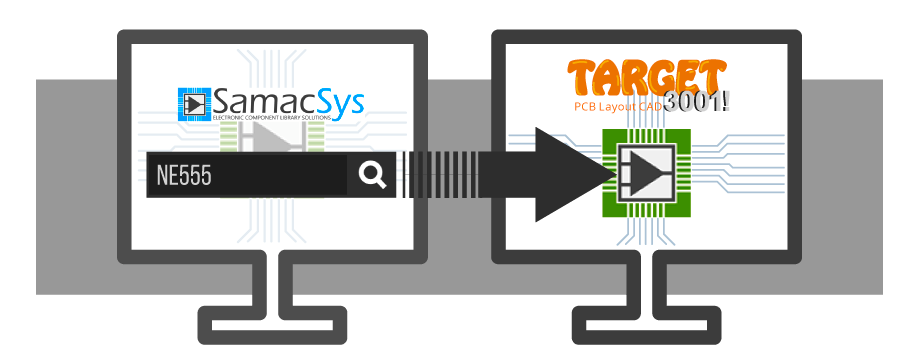
SamacSys is a search engine for electronic components including CAD data and data sheets.
 |
Video 2 min |
Drag and drop your desired part to your TARGET 3001! design. It is that easy.
Once a component is downloaded, its CAD data instantly are taken to the TARGET 3001! component data base so you have it for further projects too.
Search a part in TARGET and redirect the request to SamacSys
If you are looking for a component in the TARGET component browser, simply press the adjacent button "SamacSys" in order to redirect this request to SamacSys as well:

Image: Redirect a component search to SamacSys (arrow).
The SamacSys website immediately searches for this component and lists the corresponding results. Select a component and click on the button in the column "ECAD Model", see arrow. If there is a symbol in the column 3D, a 3D model will be loaded automatically.

Image: SamacSys results listed.
You must save the download. Use your default Windows download directory as storage location. Tell TARGET the path to it.

Image: Save the download.
TARGET monitors the mentioned download directory. The path to it must be set in TARGET. This is an example setting:

Image: My personal download directory. Sure you will be using your user name. If a matching file arrives there by download, TARGET picks the information and deletes the file.
If the TARGET part browser is still open, a tab named "CXF SamacSys" is created. At the same time, a list of SamacSys downloads will be created in the lower left corner of the browser:

Image: SamacSys TAB and list in TARGET 3001!
Search for a component at SamacSys while the TARGET schematic is open.
In this situation you have the component symbol instantly at the cursor after downloading it from the SamacSys site. You will be able to place it straight away to the schematic. At the same time it is stored in the TARGET component database.
Load a 3D model
If Samacsys provides a 3D model for the component in question, it will be part of the automatically downloaded *.zip file. You'll find it in your designated download folder. Eventually you may download it separately. Adding a 3D model in STEP format (*.stp) is easily done in TARGET:

Do a right click in the area close to the coordinate system in the TARGET component browser to "Edit 3D..."
Do not create an extruded polygon as suggested in an intermediate dialog.
Instead click button to load and align a STEP file:

Click the STP button in the dialog and load the step file. Align it if necessary and save it. Now it is part of the component and will appear in the 3D view of TARGET.
http://www.samacsys.com/target3001-libraries/ (Samacsys Website concerning TARGET 3001!)